
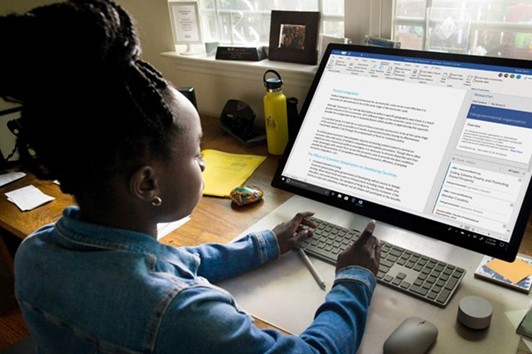
Improve Your Workplace Productivity With Microsoft Word: 11 Tips To Make the Most of This Program
Microsoft Word is an indispensable part of most business environments. It has numerous features that can help you boost productivity.
Microsoft Word is one of the most popular office programs in the world. It allows millions of people to complete their duties more efficiently.
Whether you’re a beginner or advanced user, you can use the software to create many different documents. The list includes business letters, resumes, flyers, marketing newsletters, labels, plans, employee reports, and seminar documents. Best of all, you can print and share them within seconds.
It’s easy to see why most companies rely on Word. But the reality is, many people haven’t tapped into the full potential of this tool. It’s chock-full of features that can help you be more productive, yet not a lot of people know about them.
This article will provide 11 tips on making the most of Microsoft Word to enhance your workplace productivity.
THE 11 TIPS
TIP #1 - SWITCH TO AN ONLINE WORKSPACE
One of the best things about Microsoft Word is that you don’t have to install it on your smartphone, tablet, or computer. The office.com website allows you to sign in with your Microsoft account and use Word Online, the online version of this program.
This is especially useful for people with limited storage on their devices since Word can be hefty. It uses around 1.2GB of storage space for Mac and 2.10GB for Windows.
It provides the same functionality without taking up space on your device.
TIP #2 - COLLABORATE EFFICIENTLY
Word allows you to edit the same documents simultaneously. You only need to save your file to your OneDrive account, use the Share function, and send it to your colleagues. People who receive the link can then edit the file with Word Online or the desktop app.
TIP #3 - INTEGRATE WITH DICTATE
Businesspersons do a lot of writing throughout the day, including responding to emails and creating presentations. This can cause both physical and mental fatigue. Using speech-to-text can be much easier, and this is where Dictate comes into play.
This Microsoft Garage add-in for Word, PowerPoint, and Outlook converts what you dictate to writing with advanced speech recognition technology. As a result, your fingers can finally take a break from all that typing.
TIP #4 - ESTABLISH EDITORIAL CONTROL
The Track Changes feature in Word enables you to monitor all the edits in your document. You can find it in the Review tab, and clicking it allows you to see all changes other users made.
Best of all, you can also accept your employees’ suggestions so that you don’t have to do all the work.
TIP #5 - USE LINKED NOTES
Facing deadlines is no fun when you can’t find the motivation to compose your articles. The best way to get around this problem is to keep your thoughts in OneNote. This program allows you to compose quotes and thoughts to keep your articles spotless.
To further improve your experience with this program, be sure to use Linked Notes.
Linked Notes enable you to place OneNote to the side of your screen. You can create Word articles and take your notes in OneNote simultaneously. This way, you can stay organized and focused.

TIP #6 - RESEARCH WITH SMART LOOKUP
Word’s Smart Lookup feature lets you perform online research while working on documents. Consequently, there’s no need to type in your query in a
different tab.
To do it, highlight a word or phrase, right-click it, and choose Smart Lookup from the following menu. Word will then perform a Bing search and display the results in the right section of your display.
TIP #7 - PROTECT YOUR VISION WITH CONVENIENT ZOOMING
One of the biggest obstacles to productive work is eye strain caused by sitting too close to your screen. To resolve this issue, use the zoom feature.
Look for the slider in the lower-right part of your document to find the ideal setting, or press the Windows and Plus keys on your keyboard. Use the setting that feels most comfortable to you, as it can help prevent eye fatigue.
TIP #8 - INCORPORATE ICONS
Your documents need to be readable. Since most people focus on your images and headings, you should give them some artistic value.
Word’s Icons will help you accomplish this. They are a simple way to draw the reader’s attention to crucial information without cluttering your document. With it, you can help improve the readability of your files, meaning readers - whether you or a teammate - won’t have to look for distinct words or phrases.
TIP #9 - FORMAT YOUR FILES
The Styles section comes with ready-made text formatting options to help customize your documents more easily. Furthermore, you can add your own styles or frequently used ones.
By saving your preferences, you can incorporate them anytime without manually formatting your documents.
TIP #10 - LOOK UP AND USE IMAGES FASTER
With Word, you don’t need to open a web browser to find the perfect photo for your files.
Just place your cursor in the section where you wish to insert an image, navigate to the Insert tab, and choose Online pictures. Select the suitable image to add to your file, and it can become more visually appealing instantly.
TIP #11 – EDIT YOUR PDFS
You might think that you need to download and install PDF editing software to edit your PDF files, but that’s not the case.
Word has a convenient PDF editing feature that lets you quickly change your documents. This can save you a lot of time and prevents you from installing potentially malicious apps.
But before you start, note that you’ll need to convert your PDF file to a format compatible with Word.
STAY ON TOP OF YOUR DUTIES WITH MICROSOFT WORD
Microsoft Word is a must-have if you want to improve communication and collaboration in your business. It allows you and your team to create documents easily to facilitate correspondence with crucial clients.
But while using Word, be sure to utilize the above features to speed up document creation. You’ll then be able to work more efficiently and switch to other tasks faster.
That said, there are more ways for you to increase productivity when using Microsoft Word. To find out more tips, feel free to contact us. We can have a no-obligation chat about it.
Article used with permission from The Technology Press.