
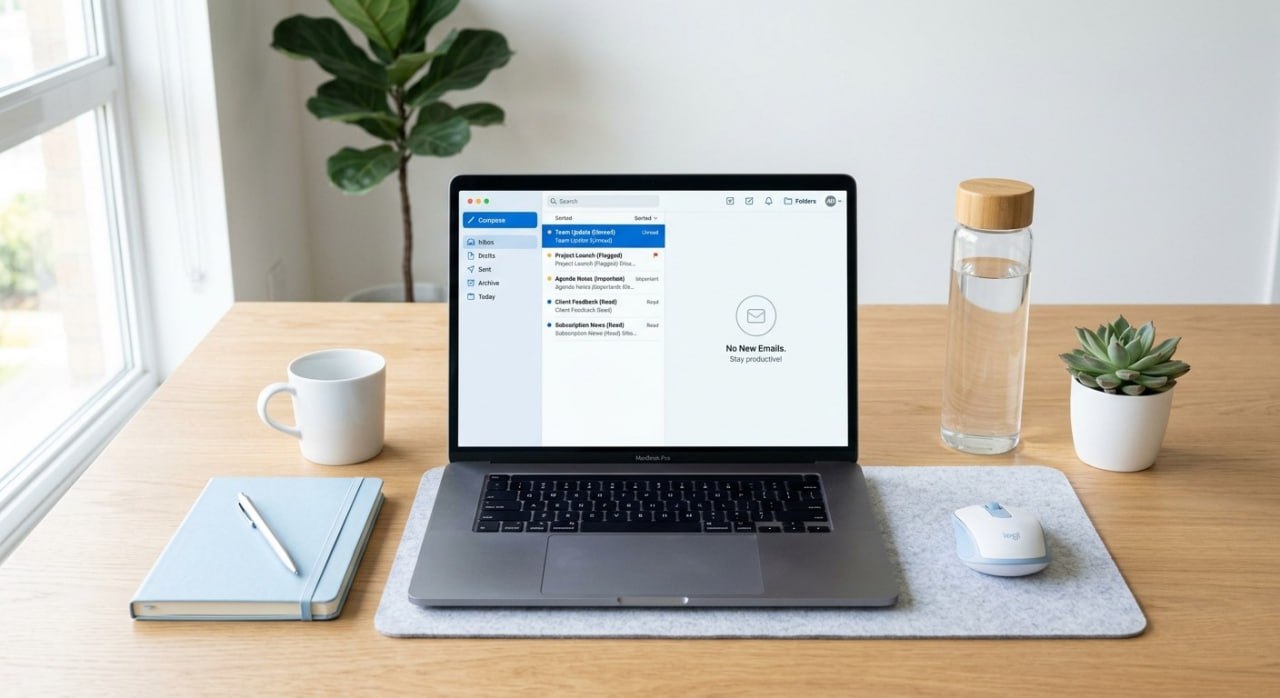
Handling Your Outlook Inbox
Most of us open Outlook dozens of times a day, read the same messages more than once, and still end the week with a few hundred things sitting there. This is a short guide to a different way of working. It takes two habits and a couple of questions.
1. Make one decision on every message you open
Once a message is on your screen, do one of four things with it before you look away: Do, Decide, Delegate, or Delete.
You have probably seen this before. The four Ds come out of the Eisenhower priority matrix, the urgent-versus-important grid that Stephen Covey popularized in The 7 Habits of Highly Effective People. The quadrants are commonly labeled Do, Decide, Delegate, Delete. Microsoft has taught a near-identical version for Outlook for years under the name "the 4 Ds of decision making," and David Allen's Getting Things Done builds its whole inbox-processing step on the same idea, along with the two-minute rule: if it takes under two minutes, just do it.
Applied to email:
Do. If you can handle it in a couple of minutes, reply, approve, answer, or act now. Then it is gone.
Decide. The message needs real work, so decide when you will do it. Flag it, turn it into a task, or block time on your calendar. It stays in your inbox as a to-do until it is done.
Delegate. Forward it to the person who should own it. It leaves your inbox the moment you send it.
Delete. Or archive. Anything you will not act on and do not need to keep.
Why the rule about not looking away? Every time you open a message, skim it, and move on without deciding, you pay for that message again later. You reread it. You reconstruct what it was asking. You decide, again, what to do about it, and often you postpone again. A message you have opened four times has cost you four readings for zero progress, and meanwhile it sits in your peripheral vision as low-grade noise. Touching a message once and disposing of it is cheaper than touching it lightly five times.
2. The goal is inbox zero
Inbox zero is a term from Merlin Mann, who introduced it on his site 43 Folders and in a widely shared talk at Google in 2007. His point was never really about the number. It was that an empty inbox frees the attention you were spending on a full one.
Here is how to think about your inbox: it is a to-do list, and only a to-do list. The messages in it are the things you have not yet done or decided. That is all that belongs there.
Nothing should live in your inbox permanently. If it did, you could never reach zero, and the to-do list would stop being one. So:
If you did it, it is gone.
If you delegated it, it is gone.
If you need to keep it for reference, it goes in a folder (more on rules below).
There is one exception people ask about. Sometimes you have replied to or forwarded something and you still want it on your radar, because you are waiting on someone else. Those messages go in a folder called Follow Up Later. Be strict about what qualifies. This folder is for things you have already acted on and want to check back on. It is not a parking lot for work you plan to get to eventually; that work stays in the inbox, where you will see it.
The daily standard: most days you should finish at zero, or at least with nothing from that day still sitting there. The only things left should be lingering to-dos you have already decided on and simply have not finished yet.
For more on thinking intentionally about how your business uses technology day to day, see Your Business Has a Strategic Plan. Does Your Technology?
3. Two questions for every message
Getting to zero and staying there depends on shrinking what arrives in the first place. Ask these of every message, especially anything automated:
Can I unsubscribe? Should I? Newsletters, vendor marketing, notification digests you never read. If you have not opened the last several, unsubscribe. Outlook shows an Unsubscribe link at the top of most bulk mail.
Do I need to have this, but not review it? Some messages you want on file without wanting to see them arrive: system alerts, receipts, ticket notifications, automated reports. For each of these, create a rule that moves it straight to a subfolder. You still have it. It is still searchable. It just never interrupts you. In Outlook, right-click the message, choose Rules, then Create Rule, and pick the folder. Give the rule a minute of setup and it pays you back every day.
Apply both questions a few times a day for a couple of weeks and the inbox that arrives will be a fraction of the one you have now. What remains is the stuff that needs you, which is the only stuff that should ever have been there.
Read: Managed IT Services
For more on how MSPs turn IT challenges into competitive advantages, read our feature in the Atlanta Business Chronicle.
Core Managed helps businesses get more out of the tools they already use. If your team needs help desk support, Microsoft 365 configuration, or strategic IT guidance, we would love to talk. Give us a call at 888-890-2673 or contact us to schedule a conversation.
Read: Core Managed Help Desk Support

Jon Wright
Jon Wright is the CEO of Core Managed. Throughout his career he has used technology to improve the bottom line of the companies he ran, and Core Managed has been doing the same for its clients since 2011.